Signing in and your account
The admin, your profile settings, your password, and what your role lets you do.
This part of the docs is for the people who run a store day to day — adding products, packing orders, looking after the team. You need a browser and an account; nothing here involves a terminal or a configuration file.
Signing in
The admin lives at /admin on your store's address — for example
https://shop.example.com/admin. Sign in with your email address and password.
- Your first sign-in. Whoever made your account chose a starting password for you. The first time you sign in, the store asks you to choose your own before it lets you go anywhere else.
- Wrong password. The message is the same whether the address or the password was wrong — that is deliberate, so nobody can find out which addresses have accounts. After about ten attempts in a minute the store asks you to wait.
- Forgotten password. There is no "email me a reset link". Ask an owner or an administrator to reset it for you (see Your team); you will choose your own again the next time you sign in.
A sign-in lasts a day by default, after which you sign in again.
Finding your way around
Across the top of every admin page:
| Link | Goes to |
|---|---|
| Products | Every product, active or not. Where you add and edit them |
| Categories | The groups shoppers filter by |
| Orders | Every order, newest first |
| Users | The team's accounts — shown only to owners and administrators |
| Storefront | The shop as customers see it |
At the far right is the profile icon. Click it for a menu with your name, Profile settings and Sign out.
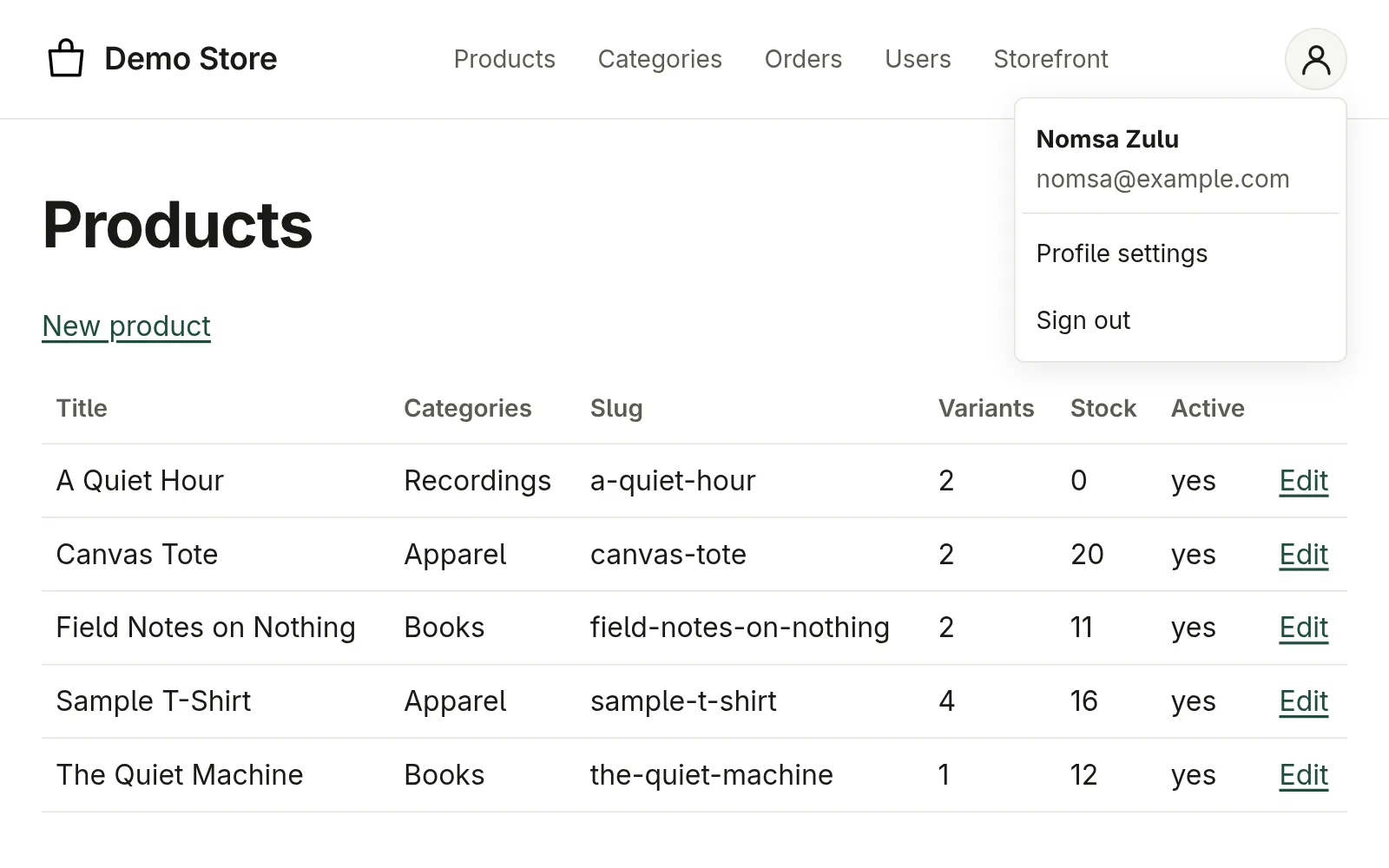
When you are signed in, the same icon appears in the header of the storefront too, with an Admin link — a quick way back after checking how a product looks. Customers never see it.
Profile settings
Open the profile icon and choose Profile settings.
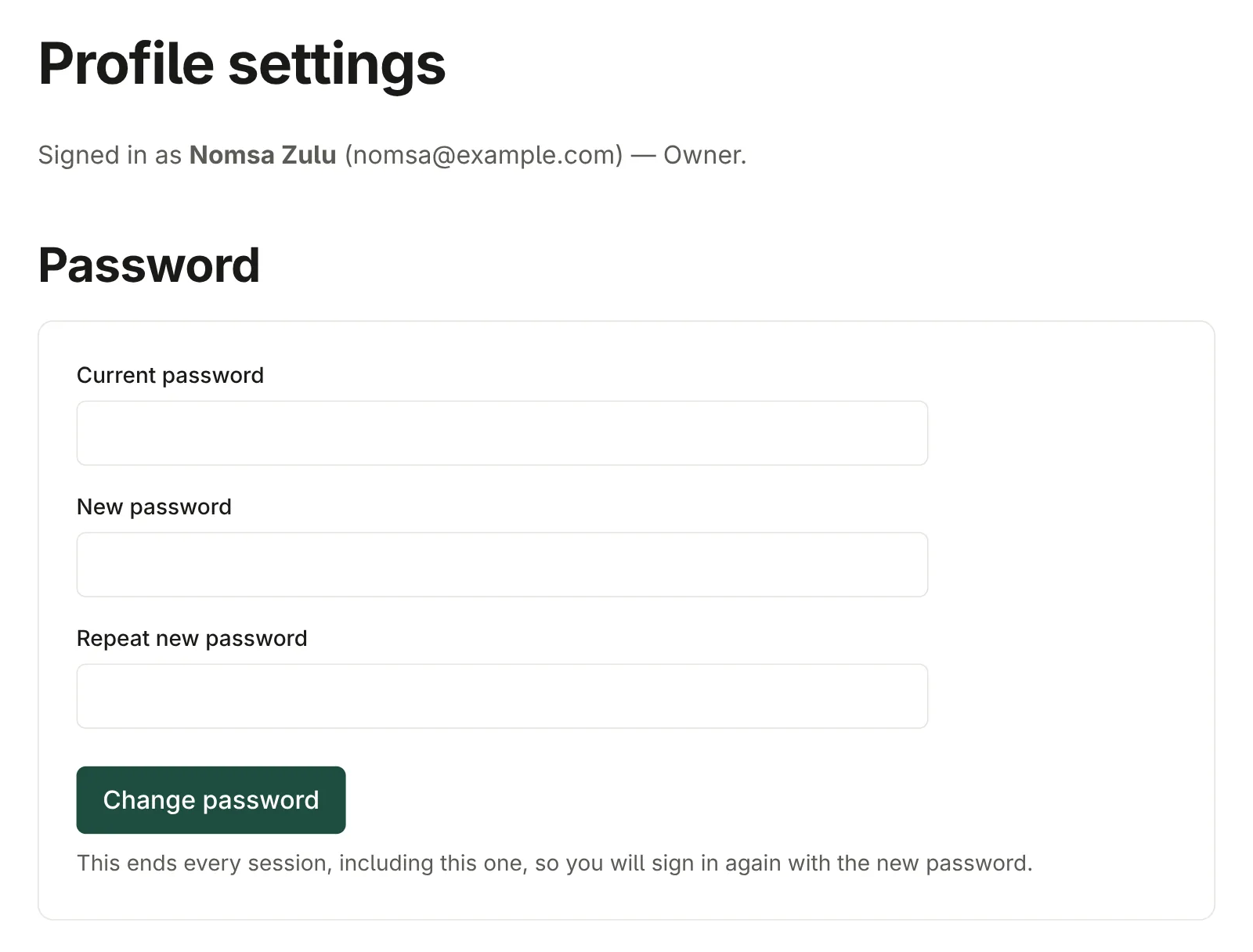
- Password. Enter your current password, then the new one twice. Passwords need at least 12 characters and there are no other rules, so a short phrase is better than a mangled word. Changing it signs you out everywhere, including this browser, so you sign in again with the new one — which is also how you make sure nobody else is still signed in as you.
- API tokens. Owners and administrators also see this section. A token lets a program — an AI assistant, say — act as you. See AI assistants.
What your role lets you do
Everyone with an account can see the whole admin. What differs is what you can change:
| Role | Products & categories | Orders | Team accounts | API tokens |
|---|---|---|---|---|
| Owner | ✓ | ✓ | ✓ | ✓ |
| Administrator | ✓ | ✓ | ✓ | ✓ |
| Manager | ✓ | ✓ | — | — |
| Viewer | look only | look only | — | — |
Buttons for things your role cannot do are simply not shown. Manager is the usual role for somebody running the shop; owners and administrators are for the people who also look after the team. If you need to do something you cannot, ask an owner or administrator to change your role.