Products and variants
Adding a product, its sizes or formats, prices, stock, and a picture.
Products and variants, in one minute
A product is what a shopper sees in the catalog: a title, a description, a picture, the categories it is in. A variant is what they actually buy, and it carries the price and the stock.
- A t-shirt in four sizes and two colours is one product with eight variants: one for each size and colour that you sell.
- A book with one edition is one product with one variant. Every product needs at least one variant — without it nothing can be added to a cart.
What tells variants apart are the product's options: up to three, named by you per product — Size and Colour for a t-shirt, Cover for a book, Format for a recording. The shopper picks from these on the product page.
Add a product
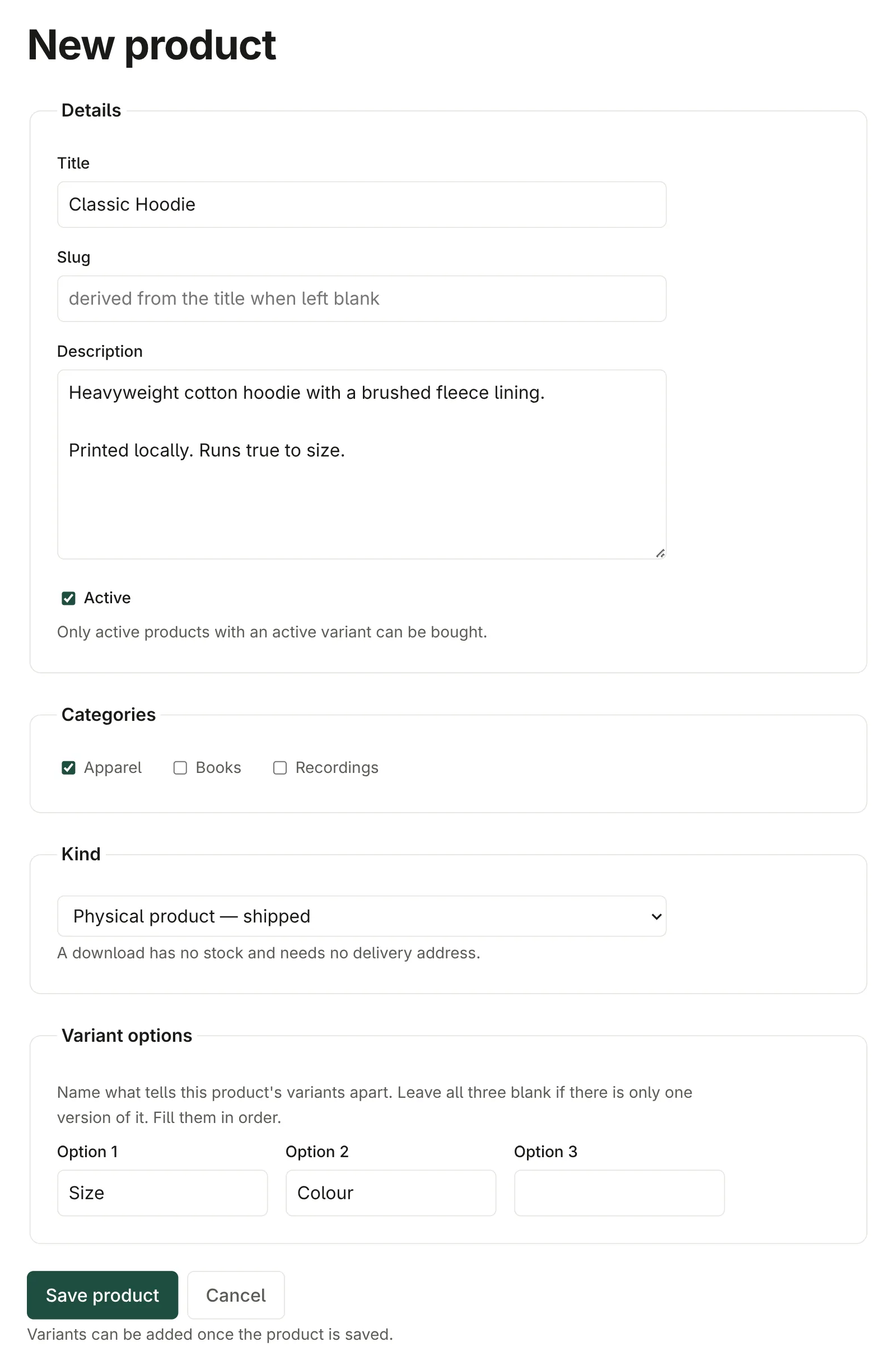
- Go to Products and click New product.
- Fill in the Details:
- Title — the name shoppers see.
- Slug — the product's address, as in
/products/blue-mug. Leave it blank and it is made from the title. Changing it later breaks links people have saved or shared, so settle it early. - Description — plain text, shown as you type it: leave a blank line between paragraphs, and a single line break stays a line break. Bold, links and other formatting are not supported.
- Active — ticked, the product is in the shop; unticked, it is hidden. You can build a product with Active unticked and switch it on when it is ready.
- Tick the Categories it belongs in, if any. A product can be in several — a book can also be a gift. See Categories.
- Choose its Kind: Physical product — shipped, or Digital download — files. A download has no stock and needs no delivery address; see Digital products.
- Name its Variant options, if it has any: Size in Option 1, Colour in Option 2, and so on. Leave them blank for a product that comes one way only.
- Click Save product.
The product is saved, but it cannot be bought yet: the page now says No variants yet — this product cannot be bought. That is the next step.
Add its variants
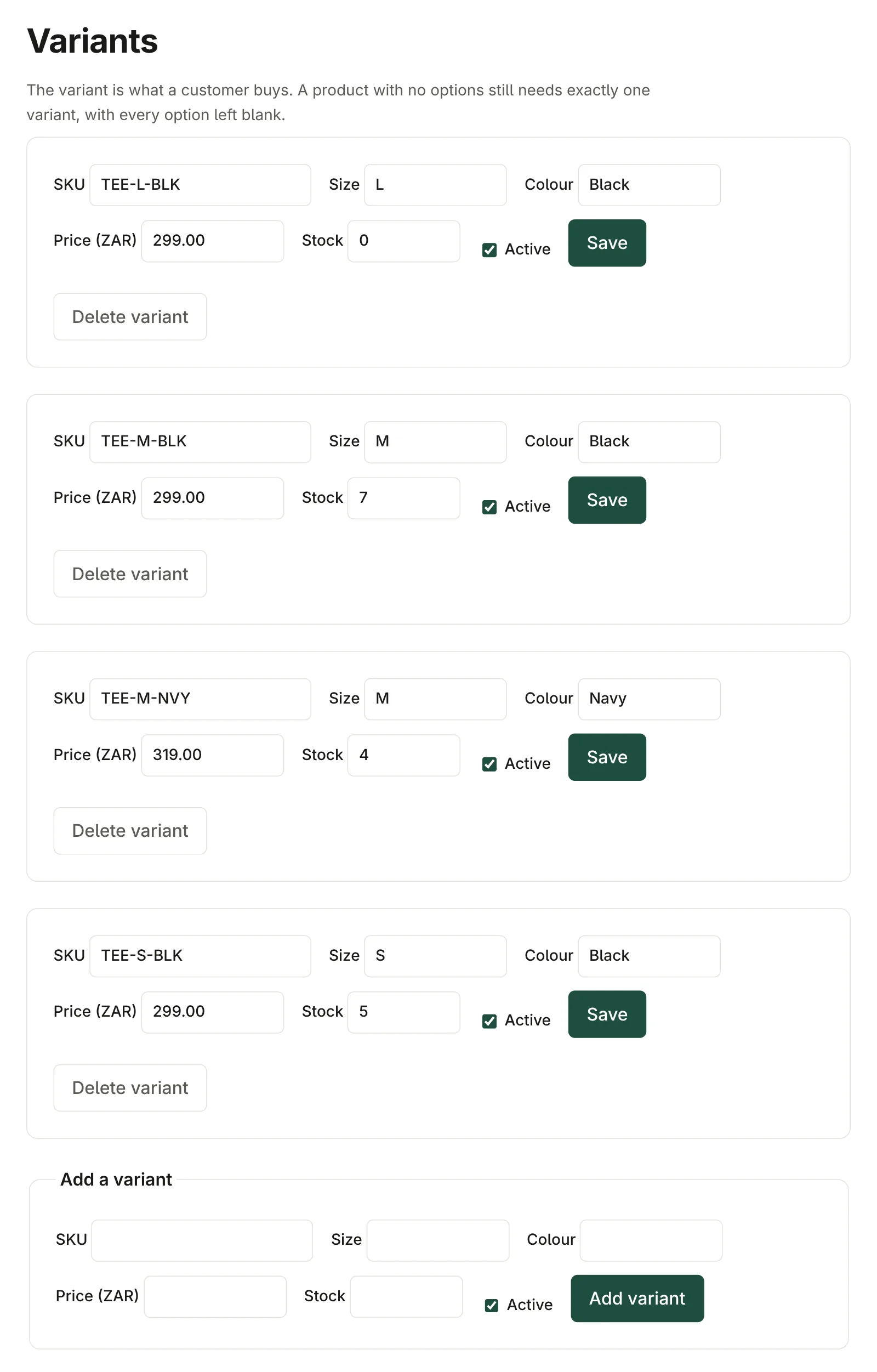
On the product's page, under Add a variant:
- SKU — your own stock code for this variant, unique across the shop, such
as
TEE-BLK-M. Customers do not see it; it is how you and your packing slips tell variants apart. - One box per option you named — for example Size
Mand ColourBlack. Spell values the same way every time; the shopper's choices are built from exactly what you type. - Price — in rand, like
149.99. - Stock — how many you have. For a download this is ignored.
- Active — untick to stop selling this one variant while keeping the rest.
Click Add variant, and repeat for each one. Every variant is listed on the same page and can be changed there and Saved.
Changing a price never changes an order already placed. Each order keeps a copy of what was bought and what it cost at the time.
Stock
Stock goes down when an order is paid, not when something is put in a cart or a checkout is started — an abandoned cart holds nothing back.
When a variant reaches 0 it shows as Sold out and cannot be added to a cart. A product stays in the catalog, marked sold out, when all of its variants are; untick Active if you would rather hide it.
Occasionally two people pay for the last one at the same moment. Both payments count, and the second order is marked oversold so you can decide what to do — see Orders.
To restock, change the variant's Stock to the new count and Save.
A picture
Each product has one image, shown on its catalog card and its page. Under Image on the product's page, choose a file and click Upload. It must be a JPEG, PNG, GIF or WebP, up to 5 MB. To change it, upload another file the same way — it replaces the old one — and to take it off, click Remove image. A product with no image shows a plain placeholder.
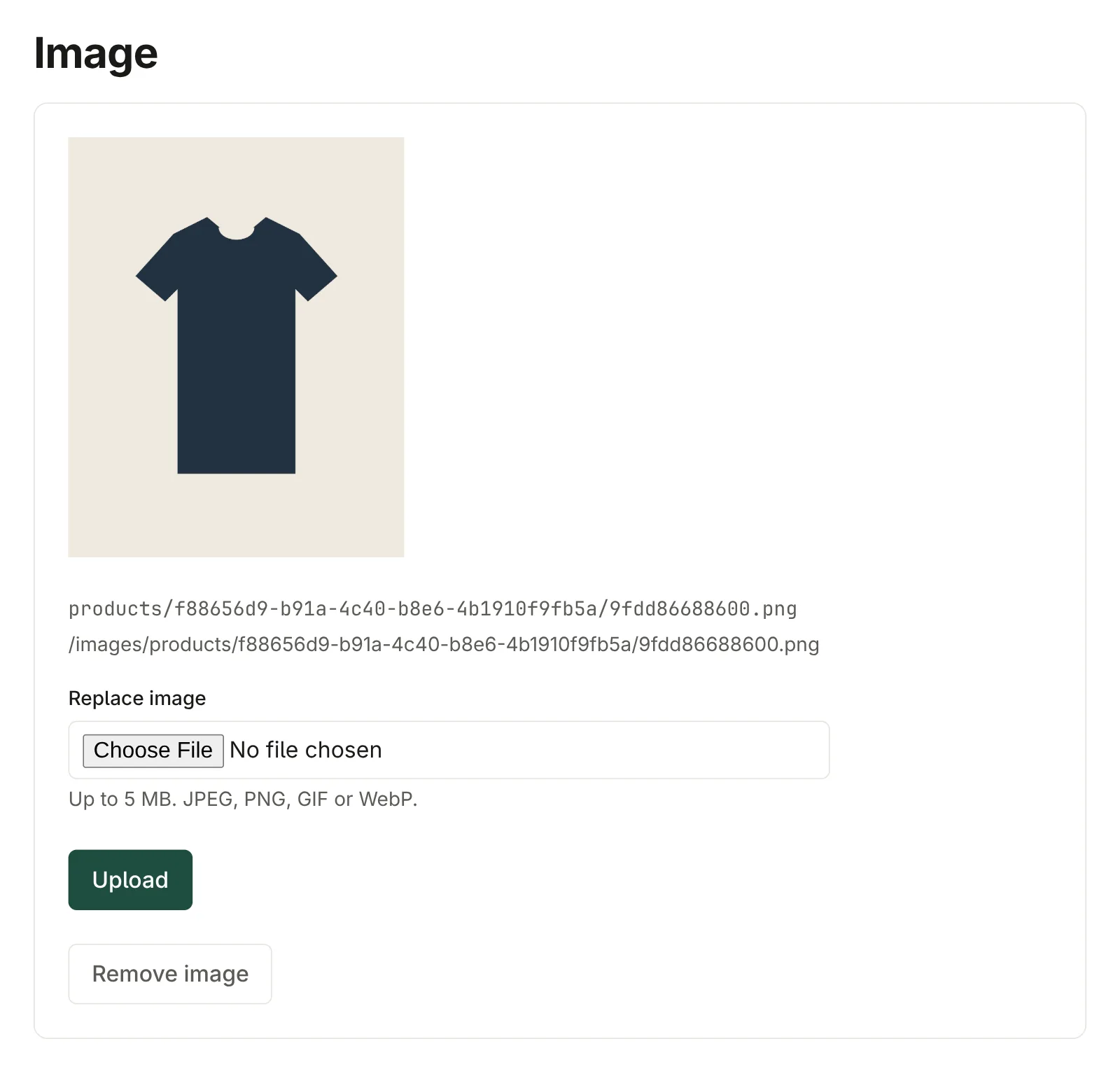
Catalog cards show every picture in the same shape, so images of a consistent shape — all square, or all the same ratio — make the neatest catalog. Your store's look decides that shape; ask whoever set the store up if you are not sure.
Hiding, and deleting
- To stop selling something, untick Active on the product (or on one variant) and save. It disappears from the shop and can come back any time.
- To delete a product or a variant, use Delete product or Delete variant. This is refused once it has ever been ordered — orders have to keep pointing at what was bought — so for anything that has sold, untick Active instead.
The product list
Products shows every product, active or not, with its categories, slug, number of variants and total stock. Click Edit to open one.