Categories
Grouping products so shoppers can filter the catalog.
Categories are how shoppers narrow the catalog: tick Books, and the catalog shows only books. They are optional — a small shop can do without them — and a product can be in as many as make sense.
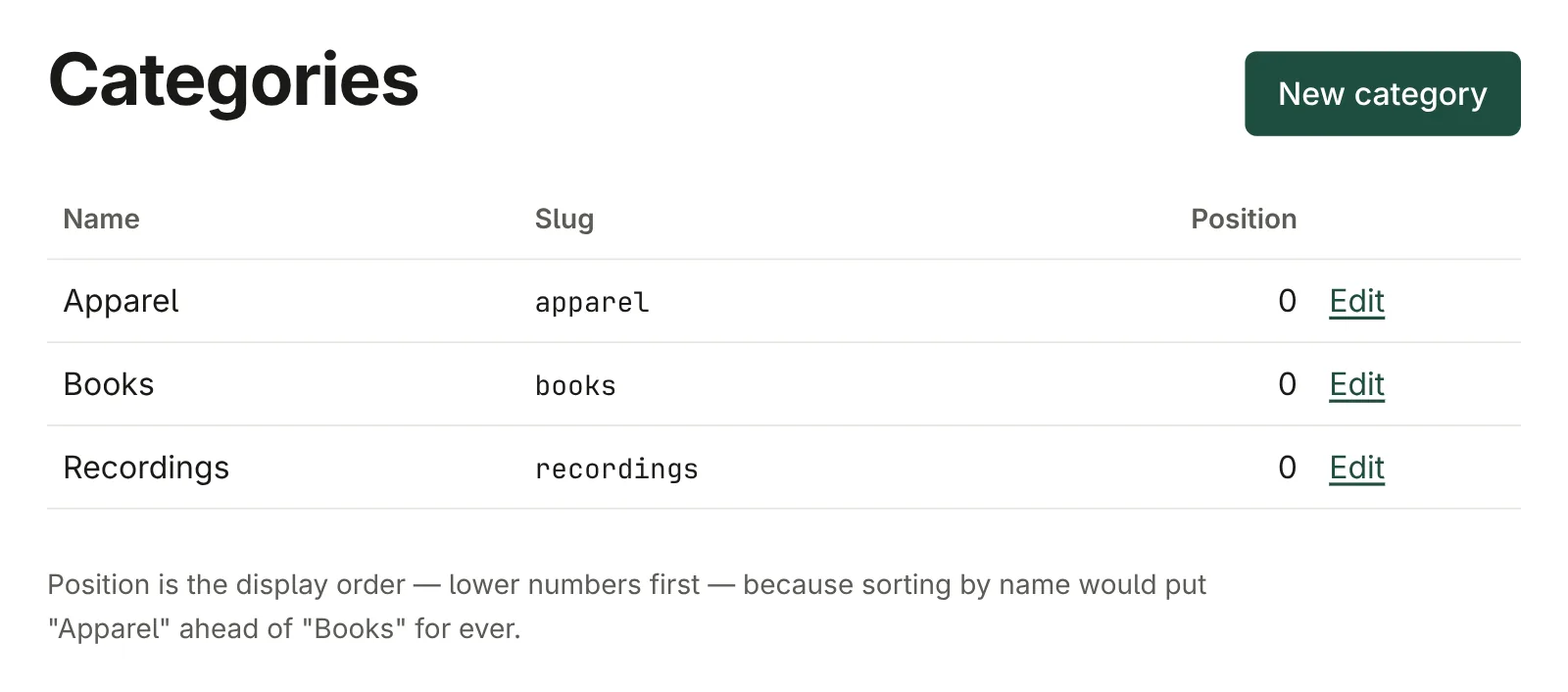
Add a category
- Go to Categories and click New category.
- Fill in:
- Name — what shoppers read, such as Books.
- Slug — the category's address, as in
/products?category=books. Left blank, it is made from the name. Changing it later breaks links people have saved, and any link to it in your store's menu, so settle it early. - Position — the order categories are listed in. Lower numbers come
first, so
0is at the front. Leave gaps (10, 20, 30) and you can slot one in later without renumbering the rest.
- Click Save category.
Put products in it
Categories are chosen on the product, not on the category: open a product, tick its categories under Categories, and Save product. See Products and variants.
Change or delete one
Open Categories and click Edit. Renaming changes what shoppers see straight away.
Delete category removes the category and nothing else: its products stay in the shop, simply no longer in that category. The page tells you how many products it was taken off.