Orders
Finding an order, packing and shipping it, emails, and download access.
How an order comes in
When a shopper checks out, the store creates an order and sends them to the payment page — PayFast or SnapScan. Coming back to the shop proves nothing, so an order only counts as paid when the payment provider confirms it to the store directly. Until then it is pending, and it may stay that way if the shopper gave up.
Once it is paid, all of this happens together:
- the stock goes down,
- the customer is emailed a receipt — with their download link, for a digital product,
- and, if your store has an orders address set up, a packing email goes to whoever sends parcels out, with what to pack, where it goes, and a link to the order.
Nobody in the admin can mark an order paid, change what it cost, or edit what was bought. That is deliberate: those facts come from the payment provider and the moment of purchase, and a button that changed them would be a way to record money that never arrived.
Finding an order
Orders lists them newest first, 50 to a page. Search by the order's reference, or the customer's name or email, and narrow the list with Show:
| Show | Lists |
|---|---|
| All orders | Everything |
| Awaiting fulfillment | Paid orders with something to ship that have not been marked fulfilled |
| Oversold | Paid orders the stock could not cover — these need a decision |
| Pending email delivery | Paid orders whose receipt or packing email has not gone out yet |
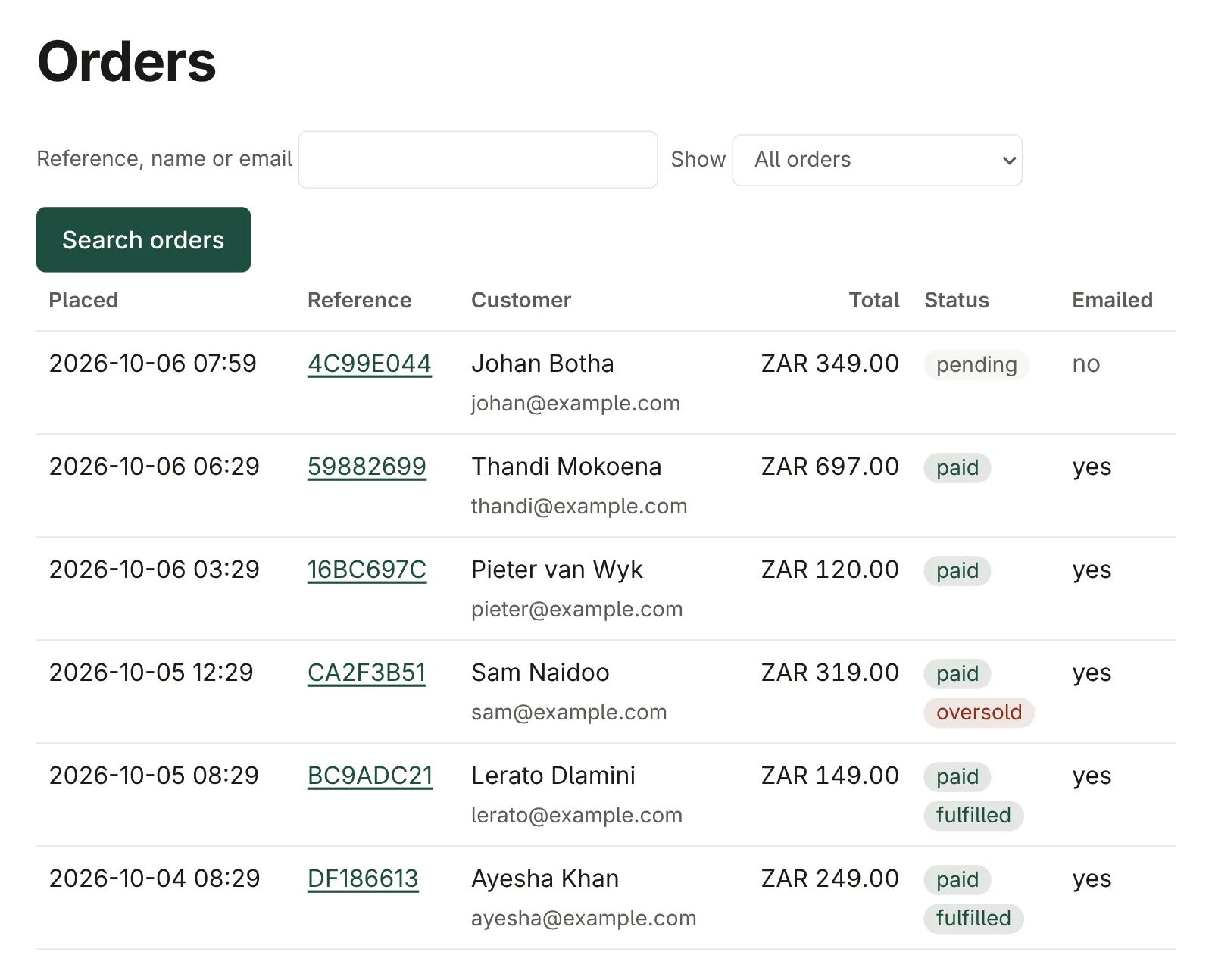
Click an order to open it.
On an order's page
Under the order's reference, badges say whether it is paid (and when), whether it is oversold, when it was placed, and whether the customer's confirmation email has been sent. Below them:
- Pack — every item, its options, quantity and price, as they were when the order was placed. Renaming or repricing a product later does not change this.
- Ship to — the delivery details the customer gave.
- Payment — what the payment provider reported: which provider, its reference, the status and the amount. Use the provider's reference when you look the payment up on their dashboard. At the very bottom is the provider's raw message, for the rare day a customer and a bank disagree about what happened.
Fulfilling an order
For a paid order with something to ship, under Fulfillment:
- Set Status to Fulfilled once it has gone out.
- Add the courier's Tracking reference, if there is one.
- Use Internal note for anything the team should know — customers never see it.
- Click Save fulfillment.
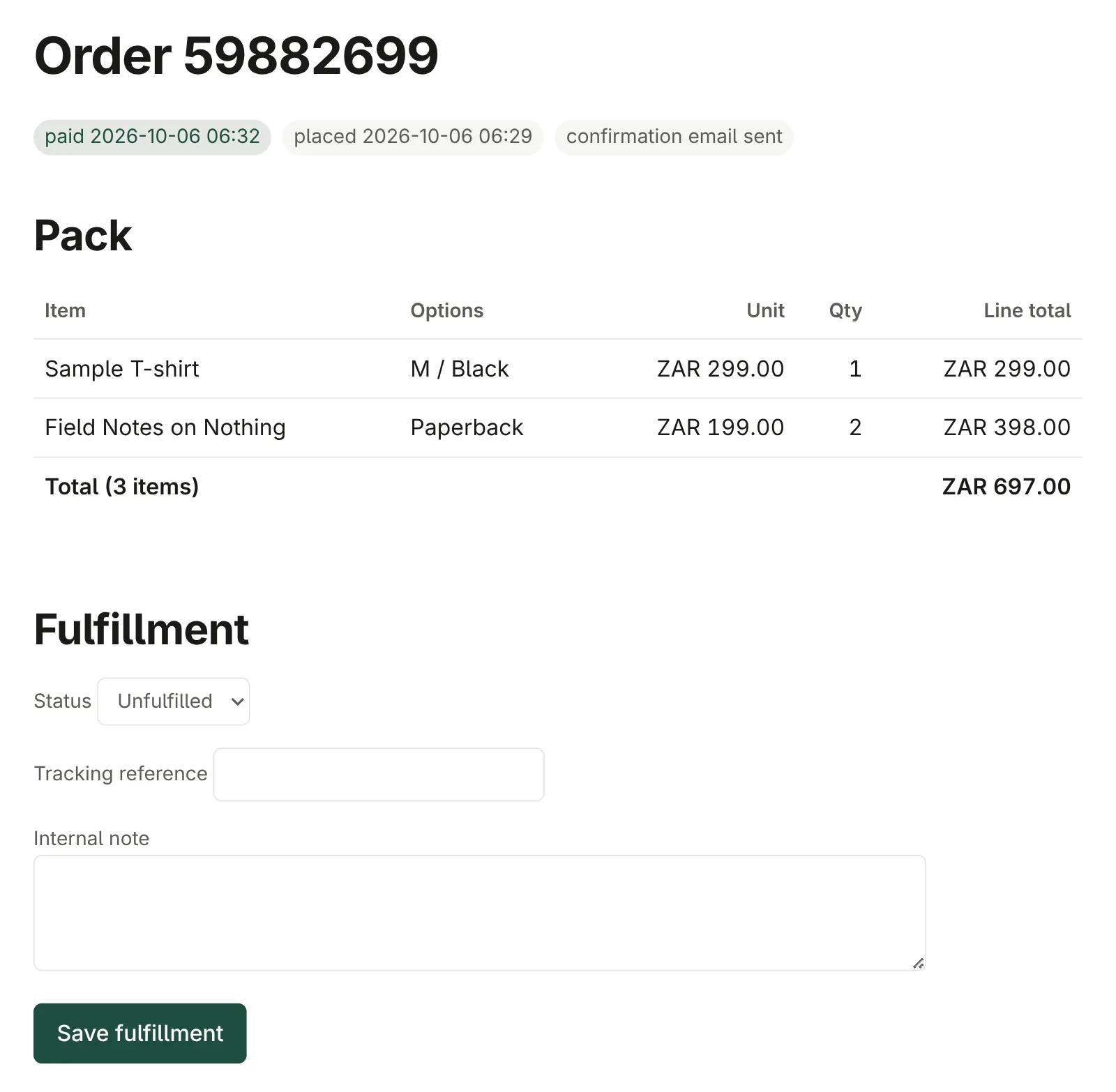
The store records who made the change and when. Fulfilling an order never changes the payment or the stock.
Oversold orders
If two people pay for the last item at about the same time, both payments go through — the money has been taken — and the second order is flagged Oversold, both in the list and in the packing email. The stock count is left at zero rather than going negative.
Somebody has to decide what to do: restock and ship late, or refund the customer through the payment provider's dashboard and let them know. Show → Oversold lists every order that needs that decision.
Emails
The Email delivery section of an order lists its emails — the receipt, and the packing email if your store sends one — with whether each has been sent, and any attempts that failed. Failed emails are retried automatically for a while; Retry pending emails tries again now — useful after a mail problem has been fixed. It never sends a second copy of an email that already went out.
Download access
For an order with digital products, Downloads lists each item, how many times it has been downloaded, and whether access is still on.
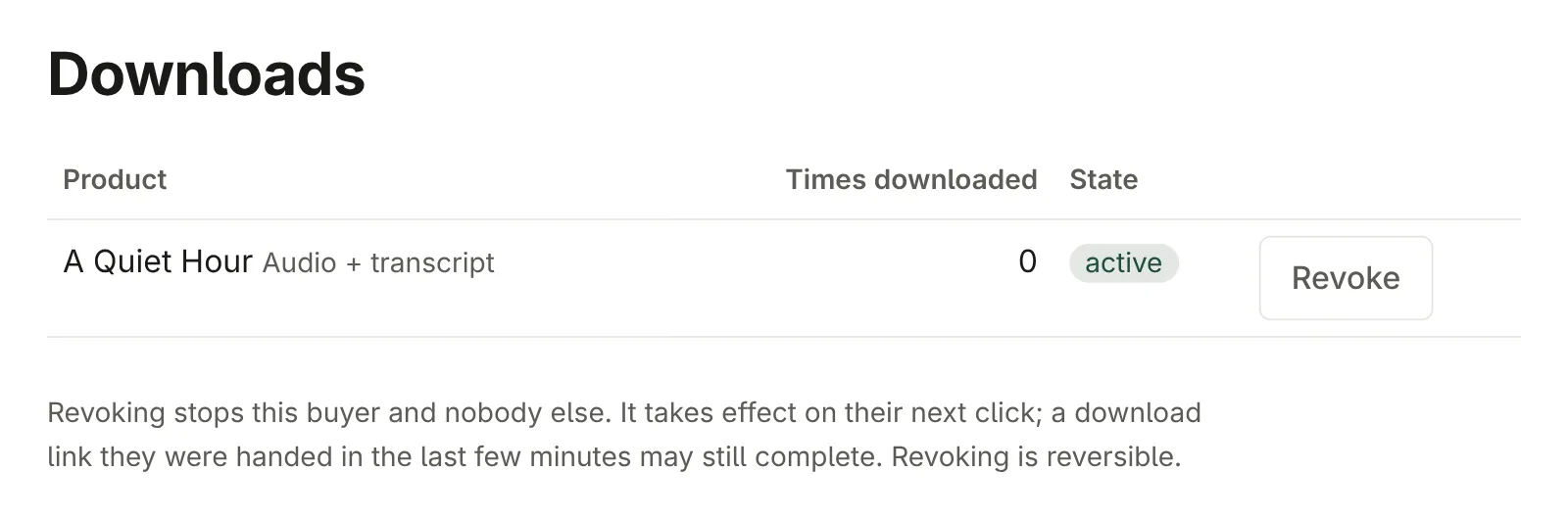
- Revoke stops this buyer downloading it — after a refund, say. It affects nobody else and takes effect on their next click.
- Restore turns it back on, with the same link.
Neither changes the order or its payment.